youtube merch shelf requirements
YouTube Merch Shelf Requirements: A No-BS Guide to Getting Approved
A guide to the YouTube Merch Shelf requirements. Check your eligibility, enable it in YouTube Studio, connect a POD partner, and start selling merch.
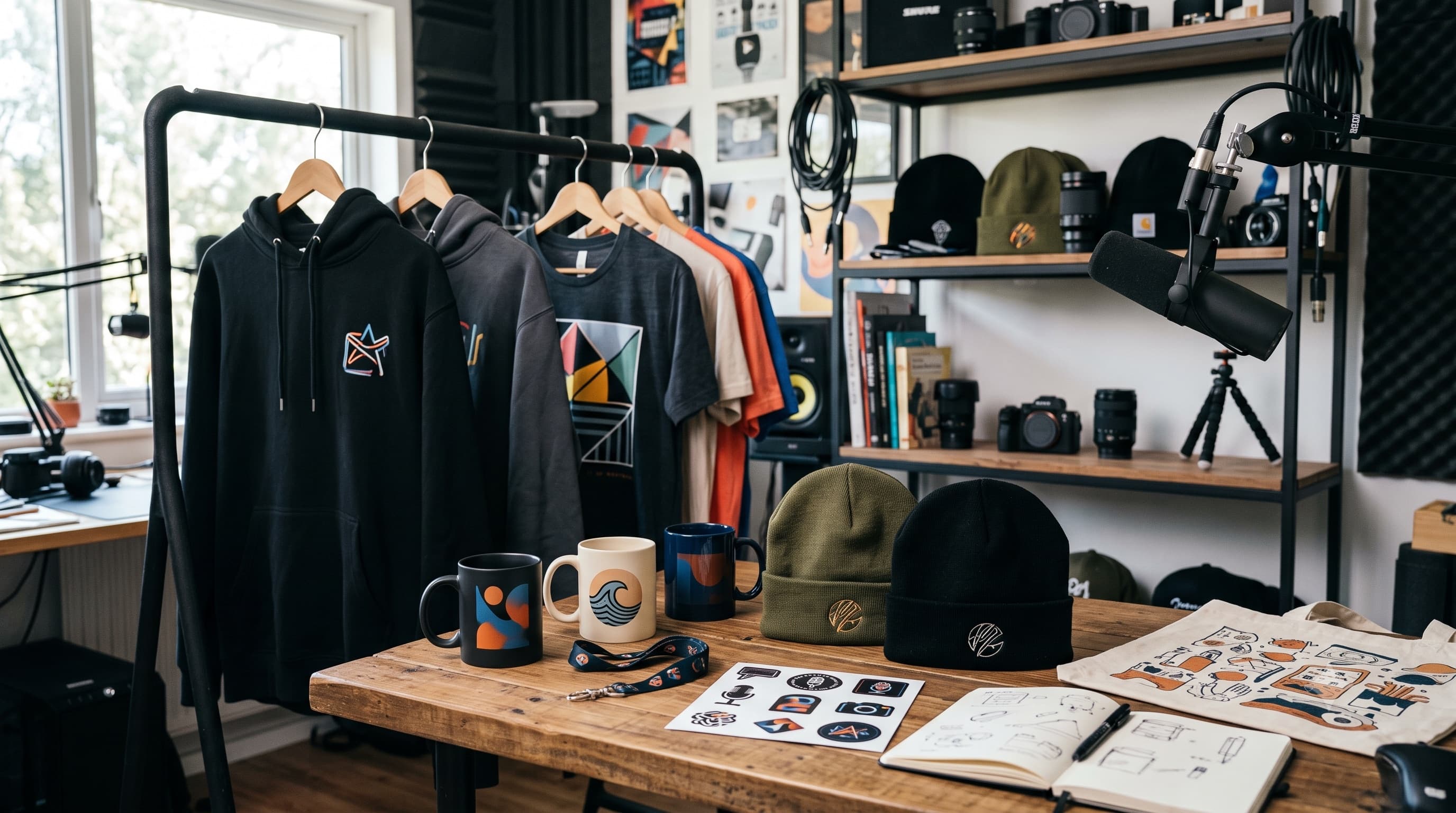
Let's clear something up right away: merch is not some locked vault that only channels with a million subs get to open. I hear this all the time in Discord: "I'll set up merch when I'm bigger." Meanwhile, you've got a chat that already loves you and would happily rock a hoodie with your logo on it.
The truth is, meeting the YouTube merch shelf requirements is way more reachable than most creators think. This is your plain-English breakdown of the exact rules and a step-by-step walkthrough for getting approved, completely free of corporate fluff and gatekeeping. You don't need to be huge. You just need a clear plan and about 20 minutes inside YouTube Studio.
Let's start with the checklist, because that's what everyone gets tangled up on.
YouTube Merch Shelf Eligibility Requirements: The Official Checklist
Note
Quick Checklist: Are You Eligible?
✅ You're in the YouTube Partner Program (YPP)
✅ You have 1,000+ subscribers (or you're an Official Artist Channel)
✅ Your channel audience is NOT set as Made for Kids
✅ You have no Hate Speech Community Guideline strikes
✅ You live in a supported country
That box up there is the whole game. If you can tick all five, you're in. Let me walk you through each one and, this is the part most guides skip, show you exactly how to check your own status for each inside YouTube Studio.
These are the current youtube merch shelf eligibility requirements, and they're refreshingly simple once you stop guessing.
YouTube Partner Program (YPP) Status
YPP is the master key. Nothing else matters until you're in. To qualify for the shopping features, your channel must be approved for the YouTube Partner Program.
As of September 2026, YouTube's Partner Program requirements give you two routes in, and both start at 1,000 subscribers: either 4,000 public watch hours in the past 12 months, or 10 million Shorts views in the past 90 days. YouTube revises these thresholds from time to time, so check that page rather than trusting a number in a blog post, including this one.
One thing that trips people up: watch hours from Shorts views in the Shorts Feed do not count toward the 4,000 public watch hours threshold; they are separate eligibility pathways (checked October 2026). So if you're a Shorts-first channel, you're chasing that 10 million views number, not watch hours.
How to check: Open YouTube Studio, look at the left menu, and click the Earn tab. It will show your progress toward YPP or confirm you're already in. If you are still working on your grind to hit these metrics, using browser extensions like vidIQ or TubeBuddy can help you track your progress and see exactly how close you are to crossing the finish line.
Subscriber Count
Here's the good news for smaller channels. There is no separate, higher subscriber bar for the merch shelf. According to YouTube's Shopping eligibility page, checked in September 2026, your channel needs to be in the Partner Program and meet its subscriber threshold (currently 1,000), or be an Official Artist Channel. Two other conditions apply: your audience can't be set as made for kids, and you can't have an active hate speech Community Guidelines strike.
That's it: 1,000 subs, not 10,000. If you're a gaming, vlog, or tutorial channel sitting at a few thousand subs, you're already in range.
| Quick Tip: Don't confuse the merch shelf with brand-affiliate product tagging. Tagging other brands' products in your videos is a separate program with its own bar: as of September 2026 it is limited to channels based in a short list of countries (the US, South Korea, Japan, Brazil, India and a handful of others), excludes music and Official Artist channels, and has its own subscriber requirement. The current rules are on the same eligibility page. That is a totally different feature from selling your own merch. |
|---|
\
Channel Is Not 'Made for Kids'
This one quietly disqualifies a lot of creators. Your channel's audience can't be set as Made for Kids, and your channel can't have a significant number of videos set as made for kids.
Why? Kids' content has strict privacy rules under COPPA, and shopping features aren't allowed to target children. So YouTube shuts the door on merch there.
How to check: In YouTube Studio, go to Settings > Channel > Advanced settings. Look for the audience section. If it says your channel is "set as made for kids," that is your blocker. You can change the default here, and you can also update the audience setting on individual videos in the video details page.
No Significant Community Guideline Strikes
You don't need a spotless record for everything under the sun, but there's one line you can't cross. Your channel can't have a significant number of videos that violate YouTube's Channel Monetization Policies, and it can't have received any Hate Speech Community Guideline strikes.
Note the specific wording: Hate Speech strikes are the hard blocker for merch. Other strikes hurt your channel generally, but hate speech is the one explicitly named for merch eligibility.
How to check: Go to YouTube Studio, navigate to Settings > Channel > Feature eligibility, and check your channel dashboard. The Community Guidelines section will show any active strikes on your account.
You're in an Eligible Country
The merch shelf isn't global yet. To be considered, you have to be based in a country where the YouTube Partner Program is available. Availability has expanded a lot over the years; it now covers most major markets including the US, UK, Canada, Australia, much of Europe, and several APAC countries.
Because YouTube adds and shifts regions regularly, don't trust a random blog's country list. Check the live list directly in YouTube's official Shopping availability documentation to confirm your country is current.
How to Enable the Merch Shelf in YouTube Studio (Step-by-Step)
Alright, you've passed the checklist. Now let's actually turn this thing on. Here is how to enable and get approved, click by click, inside YouTube Studio. Grab a coffee; this is the easy part.
Step 1: Navigate to the 'Earn' Tab in YouTube Studio
Log into YouTube Studio (studio.youtube.com), and in the left-hand menu, click the Earn tab. This is your monetization home base. To see if you meet the conditions, go to YouTube Studio and click "Earn." If the "Shopping" menu option appears at the top of the page, you're ready to go.
If you don't see Shopping yet but you've hit the thresholds, hang tight. Eligibility flags can take a little while to update on YouTube's end.
Step 2: Select the 'Shopping' Sub-Tab
At the top of the Earn page, you'll see a row of tabs. Click the Shopping tab. This is where every merch action lives, including connecting your store, choosing products, and arranging your shelf.
If the Shopping tab is greyed out or missing entirely, that is YouTube telling you an eligibility box isn't ticked yet. Bounce back to the checklist above and re-audit your channel.
Step 3: Connect Your Merch Store
Inside the Shopping tab, you'll be prompted to connect a store. This is where you link a supported merch platform to your channel.
I'm going to keep this step short here because the process of picking and connecting a platform deserves its own section below. For now, just know that this is the moment YouTube asks, "Where does your merch actually live?"
Heads up on timing: your products don't appear instantly. Once you're connected, it can take up to 24 hours for YouTube to upload and process the product feed so your inventory syncs to your channel.
Step 4: Select Products to Display on Your Shelf
Once your store is connected and synced, you get to choose what actually shows up. Select the products you want featured on your shelf.
A couple of useful details here. The merch shelf displays up to 12 products at a time. But when you're setting up, YouTube recommends that you select up to 30 products for display for a faster review process on those items. So load in your best stuff and let YouTube rotate through it.
If you want products live on your channel page, look for the toggle. Toggle on "Display products on channel" to view your products on your channel, and if you're changing the default selection for the first time, click "Create Own Selection."
Step 5: Arrange and Save Your Shelf
Last step. Drag your products into the order you want. Put your hero item, the one you'll shout out in your videos, up front. Then hit Save.
That's it. Your shelf is now live pending YouTube's product review. Remember, products go through a dual review process (YouTube's own policies and Google Merchant Center policies), and rejections at the product level are common and not always obvious. More on troubleshooting that in a bit.
Connecting Your Print-on-Demand (POD) Partner
Connecting your store is the piece that confuses the most people, so let's slow down here. Your merch shelf doesn't store products itself; it pulls from a connected merch partner. For most creators starting out, the best type of partner is a print-on-demand (POD) service.
Why POD Is the Move for Most Creators
POD means products only get made when someone orders them. The print-on-demand service lets you create unlimited products without worrying about warehousing, logistics, or upfront costs. Products are only created when they are ordered, which prevents overproduction, and the platform handles the fulfillment for you.
Translation for us: no boxes of unsold hoodies in your closet, no money down. You design, a fan buys, the partner prints and ships. That's exactly the low-risk setup you want for a first drop.
Choosing a Supported Platform
You can only connect a platform that's officially supported inside YouTube Studio's Shopping tab, and that list is maintained inside Studio itself (Monetization, then Shopping), not on a public help page. When we checked in September 2026 it included Fourthwall, Shopify, Spring, Spreadshop, Shopline, TeePublic, and Wix. Open the Shopping tab in your own Studio for the current list before you pick a store.
Spring and Spreadshop are both free, POD-first platforms, though they give you less control over branding and storefront customization than Shopify.
Now, a lot of creators want to use Printify for its huge product catalog and free, easy-to-use design tools. Here is how that connects: Printify works with YouTube through its Shopify integration; you set up your YouTube Merch Shelf and add custom merch under Monetization > Shopping. So the path is Printify to Shopify to YouTube.
There are a few solid platforms that plug right into YouTube, but if you're just getting started and want a full guide on what YouTuber merch actually sells, the team at Printify has a great breakdown of the top creator stores and design tips. We'll use them for this example since it's the tool I know best.
Whichever you pick, the flow is the same: create your products on the platform, connect it to your channel, and let the feed sync. Your merch retailer or platform, not Google, is responsible for all aspects of merch sales. The retailer figures out the final price, applicable fees and taxes, and handles the entire order, including returns and refunds. YouTube is just the storefront window, not the shopkeeper.
Troubleshooting Your YouTube Merch Shelf Requirements
Okay, real talk: sometimes you do everything right and the shelf still doesn't show, or your application gets bounced. Don't panic. This is almost always a small, fixable thing. Here's my mental checklist when a creator DMs me in a mild meltdown.
Common Problems Checklist:
- Shelf not appearing after approval? Give it time. The product feed can take up to 24 hours to process, and the shelf won't populate instantly after you connect.
- Some products are missing? That's the dual review at work: individual items get rejected even when your channel is fine. Digital products, items with images that are too small, and anything flagged as a restricted category can be rejected even if your channel is fully eligible. Swap in higher-res images and avoid restricted categories.
- Shelf shows on some videos but not others? That's normal. The shelf appears on the video page of eligible channels, but may not show on all video pages.
- No Shopping tab at all? An eligibility flag hasn't cleared. Re-audit against the checklist up top using vidIQ or TubeBuddy to ensure your channel health is in good standing.
Your Post-Rejection Action Plan:
- Read the rejection email carefully. YouTube usually names the specific issue. Don't skim it.
- Re-audit your channel against the eligibility checklist from earlier: YPP status, subscriber count, Made for Kids setting, and strikes.
- Fix the actual issue. If it's a Made for Kids setting, change it. If it's a strike, look into whether you can appeal it. If products got flagged, fix the images or categories.
- Re-apply after any required waiting period. Rejections aren't a lifetime ban; they are simply a "not yet."
Here's the reassuring part: a rejection is almost never because your channel is "not good enough." It's usually one overlooked toggle. Fix it, wait, re-apply. Done.
Your First Drop Is Closer Than You Think
Here's what I want you to walk away with: meeting the youtube merch shelf requirements is about being diligent, not being famous. The five-point checklist is genuinely reachable at 1,000 subs. You do not need to wait until some imaginary "big enough" milestone that never quite arrives.
The whole path is short: check your eligibility, connect your store inside YouTube Studio's Shopping tab, and pick a POD partner that handles the printing and shipping so you don't have to. That's it. That's the grind.
And remember what merch actually is: it's not a get-rich-quick lever; it is a way for your community to wear something that says "I'm part of this." Your chat already loves you. Give them the chance to show it.
Now go tick those boxes. Your first drop is way closer than you think. See you in the VODs.
FAQ
How many subscribers do I need for the YouTube Merch Shelf?
You need at least 1,000 subscribers to access YouTube Shopping features, or you must be verified as an Official Artist Channel.
Can I use Printify for my YouTube Merch Shelf?
Yes. While Printify doesn't connect directly as a standalone platform, it integrates seamlessly through Shopify. You connect Printify to Shopify, and then link your Shopify store to your YouTube Studio Shopping tab.
Does the Merch Shelf show up on mobile devices?
Yes, the merch shelf displays below your videos on both the desktop site and the YouTube mobile app for supported devices.
What happens if my channel gets a Community Guideline strike?
If you receive an active Hate Speech strike, you will lose your eligibility for the merch shelf. You will need to wait for the strike to expire or successfully appeal it before you can display your store again.
Is the YouTube Merch Shelf free to use?
Yes, YouTube does not charge you to display the merch shelf. However, your chosen print-on-demand platform or web host (like Shopify) may have its own subscription fees or transaction costs.
Keep reading
- How to Sell Merch on YouTube: The Playbook
A step-by-step playbook on how to sell merch on YouTube: set up your store, optimize the Merch Shelf, use Cards, and drive sales via the Community Tab.
- Holographic Stickers: Your Easiest Merch Upgrade
Thinking about merch? Holographic stickers are an easy, low-cost upgrade that your fans will actually want. Here’s how to design and sell them.
- A Creator’s Guide to Custom Acrylic Merch
Ready to make your first merch drop? Learn how to design and sell custom keychains, charms, and standees that your community will actually love and collect.