twitch emote maker
How to Turn Your Twitch Emotes into Merch & Stickers
Looking for a Twitch emote maker? Learn how to design emotes that work on screen and in print, and follow our guide to turn them into your first merch, like a custom sticker sheet.
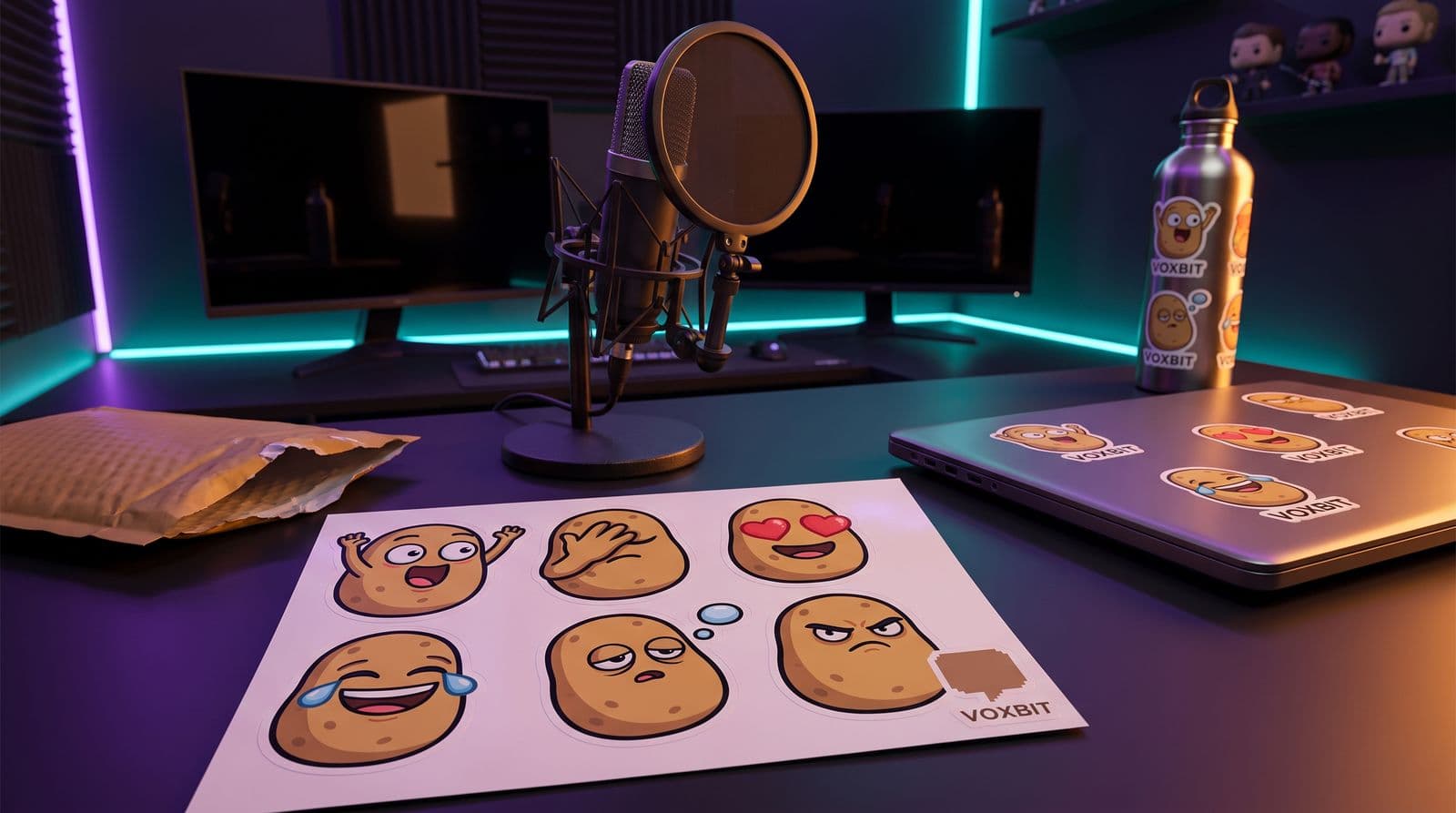
Your emotes are the secret language of your channel. They’re the inside jokes, the hype moments, and the way your chat communicates without typing a word. And here’s the thing: those little pieces of art are the perfect starting point for your first merch drop.
But the jump from a tiny pixel square in your chat to a physical sticker or a print on a hoodie can feel like a huge leap. It sounds technical and expensive, right? I thought so too.
The good news is, it’s not. You just need to know a few key things up front. We’re going to break down how to turn your Twitch emotes into merch, from getting a good design to making your first, easiest product: a sticker sheet. You’ve got this.
First, What Makes an Emote Work as Merch?
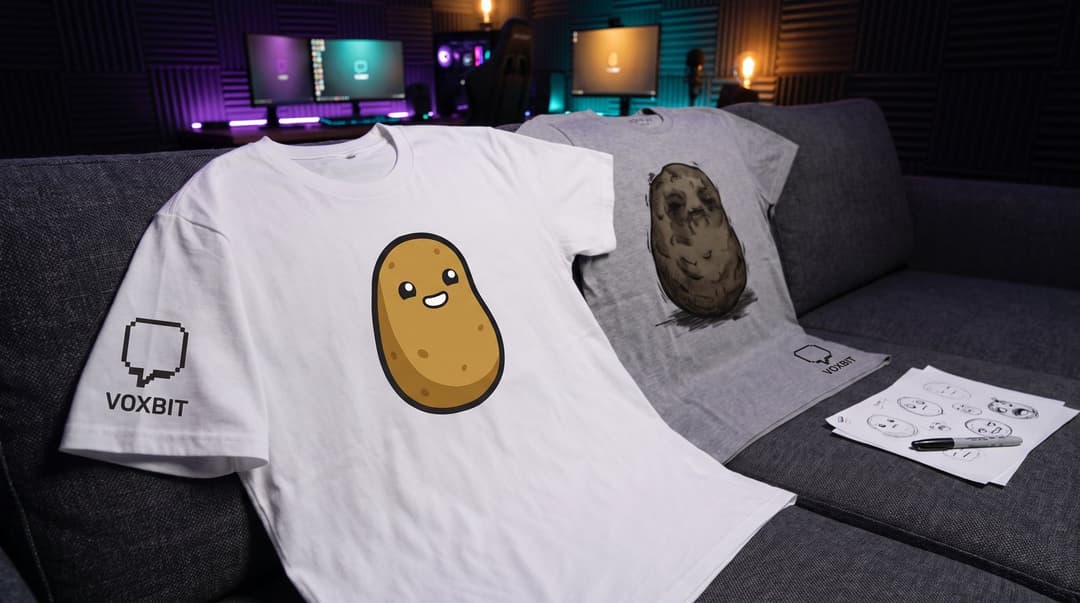
Before you even think about software, let’s talk design. An emote that works on a t-shirt has the same DNA as one that works in your chat. The number one rule is simplicity.
Think about it. An emote has to be readable at 28 by 28 pixels. If it looks like a colorful smudge at that size, it’s not a great emote. The same principle applies to merch. A complicated, super-detailed design often looks messy from a distance. A simple, bold design always wins.
Here’s a quick checklist for good emote design for merch:
- Bold Lines: Use thick, clean outlines that define the shape clearly.
- High Contrast: Make sure your colors pop against each other. Avoid subtle gradients or shades that are too similar. Black and white is the ultimate high-contrast combo for a reason.
- One Clear Idea: Your emote should communicate a single feeling or meme instantly. Is it a hype emote? A facepalm? A heart? If you have to explain it, it’s too complicated.
My first emote for our channel mascot was a disaster. I tried to include all these tiny details, and it ended up looking like a weird brown blob. In chat, people called it “the potato.” On a test shirt, it looked even worse. We learned our lesson: simple is better.
If you want to go deeper on this, we have a whole guide on how to design merch fans actually want to wear, but the short version is: keep it simple.
The Best Twitch Emote Maker Tools for Any Budget
Okay, so you know what makes a good design. How do you actually get it made? You’ve got a few options, depending on your budget and your artistic skill.
Option 1: DIY for Free
If you’re just starting out or have a simple idea, you can absolutely make your own emotes. You don’t need to be a professional artist. Tools like Canva are surprisingly powerful for this.
You can combine simple shapes, use their library of graphics, and play with text to create something unique. The most important rule here is to only use elements you have the rights to. Don’t just grab a picture from Google. Stick to a platform’s free-to-use library or your own original work.
Option 2: Specialized Emote Generators & Editors
There are a bunch of online tools and emote generators out there. Some are free editors, while others offer pre-made packs. These can be a fast way to get started, but your emotes might look similar to other channels’. A tool like Kapwing is a great free option that gives you a bit more editing power than a simple generator, letting you resize images and add text easily.
Option 3: Hire an Artist (The Best Route)
Honestly, this is the path I recommend. For a relatively small investment, you get a completely custom, professional emote that captures your community’s vibe perfectly. It’s also way less work for you.
You can find amazing artists who specialize in emotes on platforms like Twitter, Fiverr, or Etsy. Just search for “Twitch emote artist.” Expect a modest per-emote fee that varies with the artist’s style and experience.
Here is the single most important piece of advice: When you commission the art, tell the artist you need the files for merch. Ask for a high-resolution, 300 DPI source file (like a PSD or a large PNG). They will know what this means. This one step will save you a world of pain later. A small emote file is fine for Twitch, but for merch, you need the master file.
From Pixels to Print: Getting Your Emotes Merch-Ready

This is where things get a little technical, but I promise it’s straightforward. The file you upload to Twitch is not the same file you send to a printer.
Think of it like video quality. Streaming in 480p is fine for a small phone screen, but if you try to blow it up on a 4K TV, it looks like a blocky mess. The same is true for images. The difference is measured in DPI, or “dots per inch.” You can read more about what DPI means, but the simple version is:
- Screens only care about pixels. A 112×112 emote is 112 pixels wide no matter what DPI the file says, which is why Twitch specifies sizes in pixels, not DPI. Small files load fast and look fine on screen.
- Printers need 300 DPI. This is the standard for high-quality printing. It packs way more data into each inch, so the final product looks sharp and clear, not blurry. A 3-inch sticker needs about 900 pixels across; a 112-pixel emote stretched to 3 inches is a blur.
If you try to print that tiny 112-pixel file from Twitch, you’ll get a pixelated potato. I’ve seen it happen. It’s not pretty.
This is why you need that high-resolution source file from your artist (or from yourself if you’re going the DIY route). Start with a large file, at least 2000×2000 pixels at 300 DPI. You can always shrink an image down for the web, but you can never make a small image bigger without destroying its quality.
For Twitch itself, you don’t need that big file. According to Twitch’s official emote guidelines, you’ll need to provide your static emote in three sizes: 28×28, 56×56, and 112×112 pixels (as of October 2026). These should be PNG files with transparent backgrounds. Just save smaller copies from your big master file.
How to Make an Emote Sticker Sheet
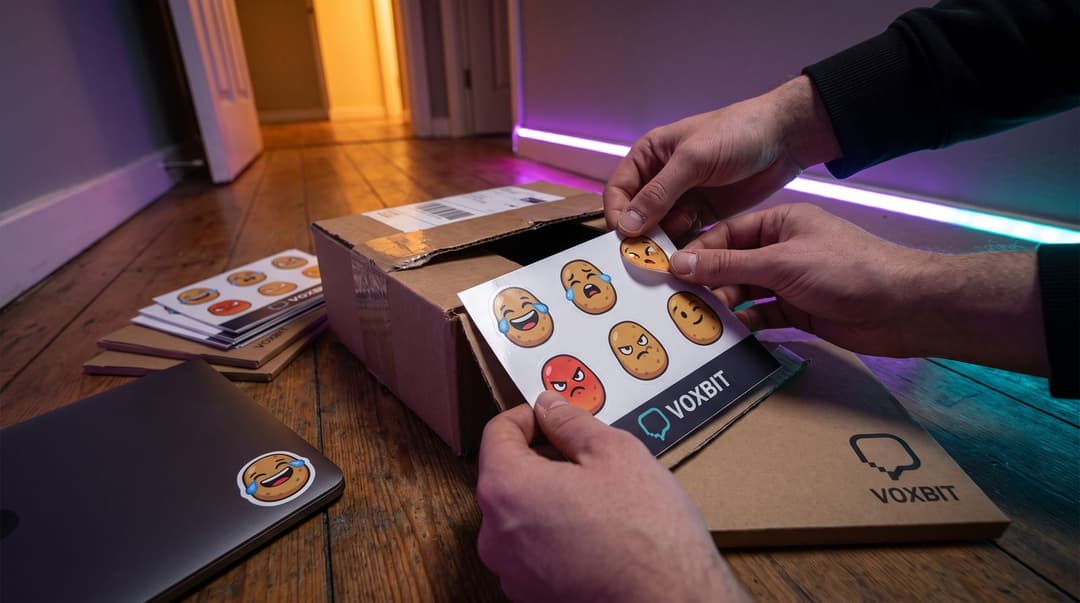
Alright, you have your high-resolution emote files. Let’s make something with them! A sticker sheet is the perfect first merch item. It’s cheap to produce, easy for fans to buy, and lets you show off multiple emotes at once.
Here’s how you create the file for it. No fancy software needed.
- Open a new canvas in a program like Canva, Photopea (which is free and runs in your browser), or Photoshop. Make the canvas the size of the sticker sheet you want to sell; use your printer’s template, since sheet sizes differ (Printful’s kiss-cut sheet is 5.83″ × 8.27″, Printify offers 6″ × 4″ and 11″ × 8.5″). Crucially, set the resolution to 300 DPI.
- Arrange your high-resolution emote PNGs onto the canvas. Drag and drop them from your computer. You can resize them and place them however you like. Just leave a little bit of empty space around each one so they can be cut out properly.
- Add your channel name or logo somewhere on the sheet if you want. Keep it small so the emotes are the main focus.
- Export the entire canvas as a single PNG file. Make sure you check the box for a transparent background and that the file is in the sRGB color profile, which is what print-on-demand services ask for. This is the file you’ll use for printing.
That’s it. You now have a print-ready sticker sheet design. Once your sheet is laid out, you can upload it directly to a print-on-demand service to get them printed and shipped without you holding any inventory.
You’re Ready to Go
See? It’s not so complicated. Your emotes are more than just little pictures in chat; they’re the building blocks of your community’s identity. Turning them into merch is a natural next step.
Just remember the core ideas: design something simple and bold, always get a high-resolution source file, and start with an easy win like a sticker sheet. You don’t need 100K followers, just a handful of people who love that weird potato emote. Now go make something cool your chat will be excited to stick on their laptops.
FAQ
Do I need to be an artist to make emotes?
No, you can use simple tools for basic designs or hire an artist for a small fee, which is often the best path.
What's the most important file spec to remember for merch?
Resolution. Always start with a large file (at least 1500x1500 pixels) at 300 DPI. You can't add quality later.
Can I put animated emotes on merch?
No, animated GIFs can't be printed. You'll need to pick a single, static frame from the animation to use for any physical product.
Keep reading
- VTuber Merch Ideas: How to Turn Your Avatar into Real Products
Looking for VTuber merch ideas that go beyond a simple T-shirt? Learn how to turn your avatar's unique details, lore, and memes into products your fans will love.
- Holographic Stickers: Your Easiest Merch Upgrade
Thinking about merch? Holographic stickers are an easy, low-cost upgrade that your fans will actually want. Here’s how to design and sell them.
- Twitch Panel Merch Link: How to Set One Up (& What to Avoid)
Learn how to set up a Twitch panel merch link that drives sales. Our step-by-step guide covers panel specs, common mistakes, and how to do it right.