merch alert
How to Show Merch Sales on Stream: Alerts, Overlays and Chat Commands
Set up a merch alert that fires when someone buys, build an overlay that sells without cluttering your stream, and add a !merch chat command. Fourthwall, Streamlabs and StreamElements covered.
Most merch sales happen off stream, quietly, from a panel link. The ones that happen live are different: a name pops up, you say thank you, chat sees it, and two more people open the store. Showing merch sales on stream turns a private transaction into a public moment, and public moments sell. This guide covers the three tools for doing that, a merch alert that fires when someone buys, an overlay that keeps the store visible without cluttering the screen, and a chat command that answers "where's the merch?" so you never have to.
Why Show Merch Sales on Stream
Three things happen when a purchase appears on screen.
- The buyer gets thanked in public. That is the real reward for buying live, and it is why people wait for the stream to order.
- Chat sees that other people buy. A merch store with no visible sales looks like one nobody uses. One alert changes that.
- You get a natural reason to talk about the merch. Not a sales pitch, a thank-you, which is the only kind of pitch chat tolerates.
None of it works if the alert is annoying, the overlay is a billboard or the command spams. So the rest of this guide is as much about restraint as setup.
Merch Alerts: What Actually Fires Them
A merch alert is just an alert like any other. The only question is whether your store can tell your alert service that a sale happened. That depends on where you sell.
Fourthwall with StreamElements or Streamlabs
This is the cleanest route. According to Fourthwall's alerts help page, you connect either service under Apps then Alerts in the Fourthwall dashboard; purchases then arrive in StreamElements as the "Purchase alert" event type and in Streamlabs under the "Tips" event type, you test by creating a digital product priced at $0 and checking out, the alert appears in about 30 seconds, and donations made through Fourthwall do not trigger alerts at all. Memberships on StreamElements come through with a special amount value, so they need their own alert variation if you want them styled differently.
Two practical notes. Keep the Tips or Purchase event enabled in your alert box or nothing shows. And if you also run Twitch gifting through Fourthwall, give gifts their own alert box so they are not queued behind everything else. Our Fourthwall vs Shopify comparison covers what else the platform does.
Streamlabs Merch
If you sell through Streamlabs' own store, alerts are built in. Streamlabs' merch store page says the store is free to start, lives on your tip page, offers 19 t-shirt, 2 mug and 4 hoodie or sweatshirt types on the free tier with more on Ultra, and plays a custom alert on stream with each order. Orders you place on your own store while logged in do not trigger an alert, which matters when you are testing.
The alert itself is managed in the Alert Box like any other event. Use the event filter to put merch on its own source if you want it styled separately from tips and follows.
If You Are on StreamElements
StreamElements no longer runs its own store. Its June 2024 announcement said SE.Merch storefronts would be taken offline and redirected to Fourthwall, with existing stores kept active for six weeks until 17 July 2024. So the StreamElements route today is the Fourthwall route above: connect Fourthwall to your StreamElements alert box and use the Purchase alert event.
Shopify and Everything Else
There is no native merch alert for Shopify, Etsy or a standalone store. You have three options, in order of effort.
- An automation bridge. A tool that watches for new orders and posts to your alert service's custom event, or to a Discord channel your overlay reads. It works, it takes an evening to set up, and it breaks occasionally.
- The manual shout-out. Keep the store's order page open on a second screen, and when a sale lands during the stream, say thank you and drop the name in chat. Low-tech, and honestly most viewers cannot tell the difference.
- Switch the store. If live sales are a real part of your plan, a creator-focused platform with native alerts is worth more than a general storefront. That is a real trade-off, and the comparison above lays it out.
Designing a Merch Alert That Helps
The default alert is a wall of text with a coin sound. Change four things.
- Show the product. Fourthwall and Streamlabs both pass the product image. A hoodie on screen sells the hoodie; "Order #4821" sells nothing.
- Show the name and message, not the amount. Nobody needs to see the price, and buyers who got a discount do not need it announced.
- Keep it short. Under ten seconds, one sound, no text-to-speech unless your community already uses it for tips.
- Give it a separate box. One browser source for merch alerts, so a purchase never sits in a queue behind follows and raids. Set it to the same corner every time so chat learns where to look.
Then do the thing software cannot: react. Read the name, hold the item up if you have one, thank them like a person. The alert is the cue, not the thank-you.
Overlays That Sell Without Shouting
An overlay is anything that stays on screen between alerts. For merch, the best overlays are small and permanent, not large and occasional.
All of them run as a browser source. OBS's browser source guide describes it as a web browser you add directly to OBS, with a URL or local file, a default size of 800 by 600, and a transparent background by default, plus a refresh button when the page changes. Every alert service and most overlay tools give you a URL to paste in.
Four overlays that work:
- A lower-third with the store address. One line, your domain, in a corner, all stream. The single most effective merch overlay because it needs no explanation and never interrupts.
- A rotating product panel. A small frame that cycles through three or four product images every minute or so. Keep it to the products you most want to sell, not the whole catalog.
- A QR code for IRL and events. Useful when your audience is watching on a TV or a phone, less so on desktop. Make it big enough to scan from a screenshot.
- A goal bar. "20 hoodies for the charity run" or "sell out the first run". Goals give chat something to push for, and our giveaway ideas pair well with them.
What not to overlay: a full-width banner, a scrolling ticker, or anything animated that competes with the game. If the overlay is the first thing a new viewer notices, it is too big.
Chat Commands
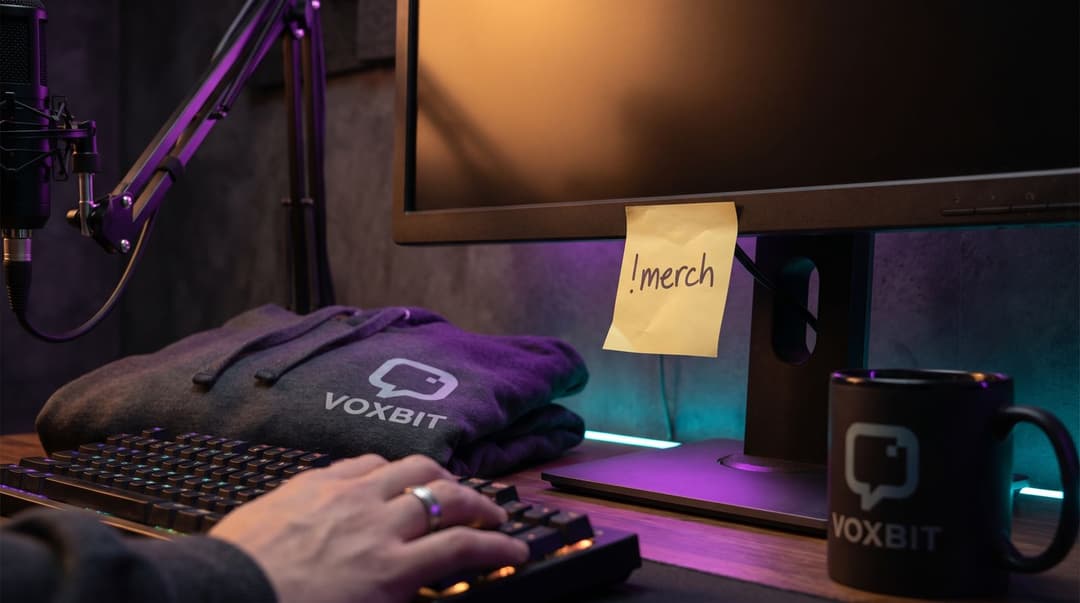
A chat command answers the question "where's the merch?" every time it is asked, without you stopping. Most chatbots do this; the syntax below is Nightbot's, and the others are similar.
Nightbot's commands documentation gives the format as !commands add, then the command name, optional settings and the response, with a userlevel option that can restrict a command to subscribers and a cooldown that sets the minimum seconds between uses. So a merch command looks like this:
!commands add !merch -cd=30 New hoodies are live, link in the panel below or here: yourstore.com
Three uses beyond the basic link:
- A timer. Most bots can post a command on a schedule. Set it to every 20 to 30 minutes with a minimum-chat-lines condition so it never fires into an empty room.
- A sub-only command. Restrict a command to subscribers and use it for the members-only code or early-access link. Our members-only merch guide explains the drop models that make this worth doing.
- A drop-specific command. During a launch, a temporary !drop command with the date, the product and the link. Delete it after.
Keep the response to one sentence and one link. A chat command is a signpost, not a sales page; the sales page is the store, and the panel link in our Twitch merch panel guide does the rest.
Putting It Together: The Merch Moment
Alerts, overlays and commands only matter if you have a routine for the moment a sale appears. Ours is four steps.
- Read the alert aloud. Name and product. "Sam just grabbed the green hoodie."
- Say one real thing. Why that item exists, or who designed it, or that it is the colour you wear off stream.
- Point once. "!merch in chat if you want one." Once, not three times.
- Move on. Back to the game within thirty seconds. The restraint is what makes the next alert welcome.
Do that consistently and chat starts doing step three for you. If you are planning a launch rather than a steady trickle, our guide to announcing a drop without killing the vibe covers the bigger moment.
Mistakes to Avoid
- Testing with real orders. Use the free test product or your own logged-in account, depending on the platform, and check the event feed before you go live.
- One alert box for everything. Merch waits behind follows, fires three minutes late, and you have already moved on.
- Showing the amount. It is nobody's business and it makes discount buyers feel exposed.
- A timer with no chat condition. A bot posting your store link into silence is the fastest way to make the link invisible.
- Thanking the alert, not the person. "Thanks for the merch!" in a flat voice while looking at the game is worse than no alert at all.
Set it up once, test it with a zero-priced product, and then forget the software. What viewers remember is the moment you looked up and said their name.
FAQ
How do I get a merch alert on Twitch?
Your store has to talk to your alert service. Fourthwall connects to StreamElements and Streamlabs from its Apps menu and sends each purchase as an alert; Streamlabs' own merch store plays a merch alert automatically. If your store is on Shopify or elsewhere, there is no native merch alert, so you bridge it with an automation tool or thank buyers manually from a chat message.
What should a merch alert show?
The buyer's name, the product image and their message, with a short sound. Leave the amount off; nobody needs to see what a hoodie cost. Give merch its own alert box so a purchase is not queued behind twenty follow alerts, and keep it under ten seconds.
What is a !merch command?
A chat command that posts your store link when anyone types it, usually with a one-line pitch. Most chatbots support it: in Nightbot it is one line, !commands add !merch followed by the text and link. Pair it with a timer that posts the same line every so often, with a long gap so it never reads as spam.
Keep reading
- 11 Merch Giveaway Ideas That Actually Grow Your Stream
Looking for merch giveaway ideas? Here are 11 strategies to run a giveaway that actually grows your stream, rewards your community, and keeps you on the right side of platform rules.
- Members-Only Merch: Exclusive Drops for Subs, Members and Patrons
How to run members only merch for Twitch subs, YouTube members and Patreon patrons: what each platform lets you gate, four drop models, and how to do it without a mess.
- How Much Do Streamers Make? Where Merch Fits In
What small streamers really earn from subs, Bits and ads, with Twitch's own numbers, and where a merch shop fits into that income without a big audience.